
Managing Prepaid Class Packs and Session Passes
Kananas lets your club, studio, or nonprofit sell prepaid class packs and session passes that include a set number of class visits.
When a member attends a class or activity, staff can deduct one or more entries from their pass. Kananas updates the number of visits remaining and maintains a complete usage history.
This feature is particularly useful for:
- 5-, 10-, or 20-class packs;
- yoga, Pilates, dance, and fitness classes;
- arts and community workshops;
- drop-in recreation and sports programs;
- passes that can be used across multiple activities.
Class packs are connected to the Kananas product catalog, member purchase records, and class schedules, so staff can manage sales and attendance in one place.
- How session passes work
- Create a prepaid class pack
- Sell a pass to a member
- Redeem visits when a member attends
- Calculate the remaining balance
- Check pass balances
- View usage history
- Correct or reverse an entry deduction
How do prepaid class packs work?
Your organization sells a product that includes a set number of class visits. When the product is purchased, Kananas creates an individual pass linked to the member’s contact record.
Each pass has a remaining visit balance that decreases as attendance is recorded and entries are deducted.
For example, with a 10-Class Pack:
- A member purchases a 10-Class Pack.
- Kananas adds a pass with 10 available entries to their record.
- When the member attends a class, you deduct 1 entry.
- Their pass balance automatically changes to 9 entries remaining.
- For each additional class, you record the number of entries to deduct.
Once the member has used every entry, the pass is marked Exhausted and cannot be used for another class.
You can also set an expiration date if the class pack is only valid for a limited time.
Create a prepaid class pack
In Kananas, a class pack is configured as a product in your catalog.
To create a class pack:
- Open Shop > Products.
- Create a new product or open an existing one.
- Enter a clear product name, such as “10-Class Yoga Pack”.
- Enter the price for the full pack.
- Set an optional expiration date or validity period.
- In Entries included, enter the number of visits in the pack.
- Click Save.
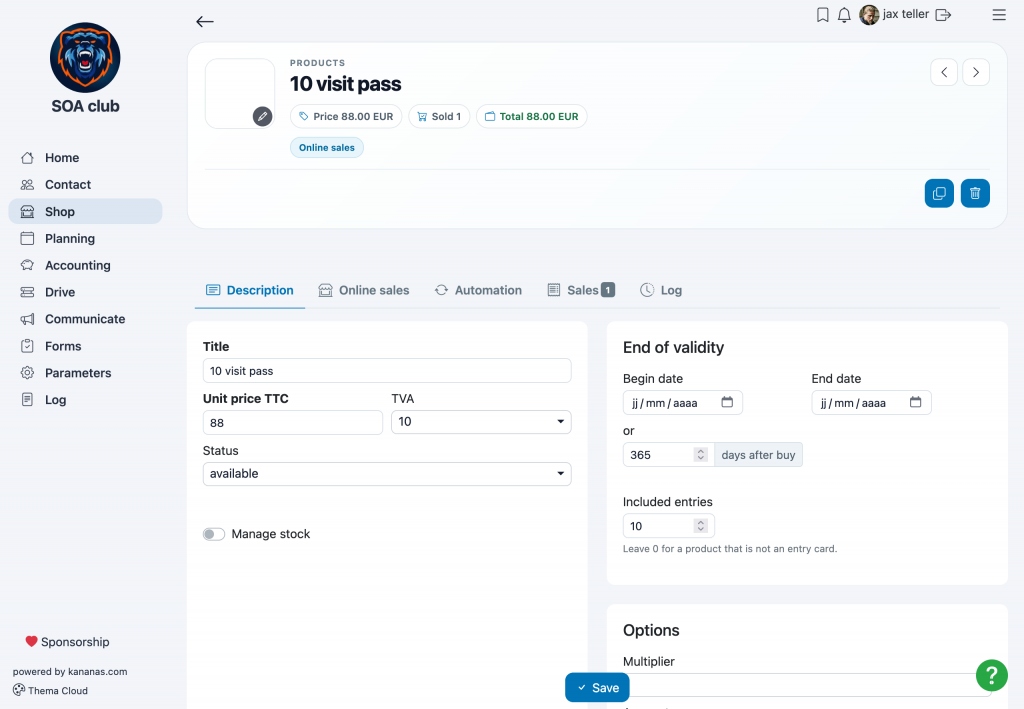
Each purchase of this product gives a member 10 available entries to use for classes.
Set an expiration date
You can limit how long a class pack can be used by setting its validity period on the product.
For example, you might offer a class pack that must be used within a defined season or enrollment period.
After the expiration date, the pass is marked Expired and cannot be redeemed for additional classes.
Sell class packs online
As with other products, you can offer class packs in the member portal store or the public online store, depending on your product settings.
For additional product settings, see Setting up a product.
Sell a class pack to a member
Class packs use the same sales workflow as other products in your Kananas catalog.
You can:
- add a pack from the member’s contact record in the back office;
- let members purchase packs through the member portal store.
Example: add a class pack to a member’s cart
- Open the member’s contact record.
- Open the Cart tab.
- Click Expense.
- Select the pass from the product list.
- Confirm the purchase entry.
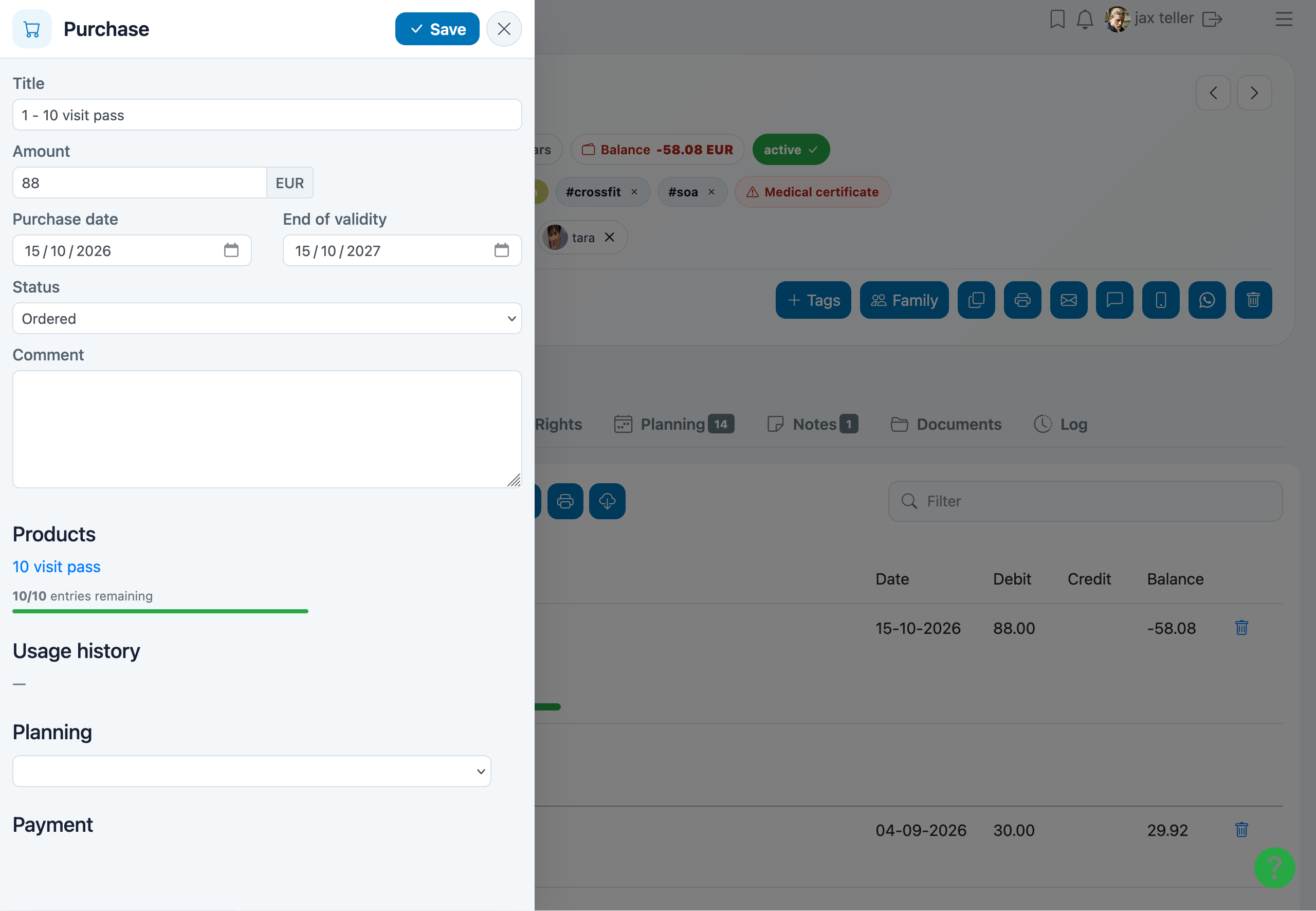
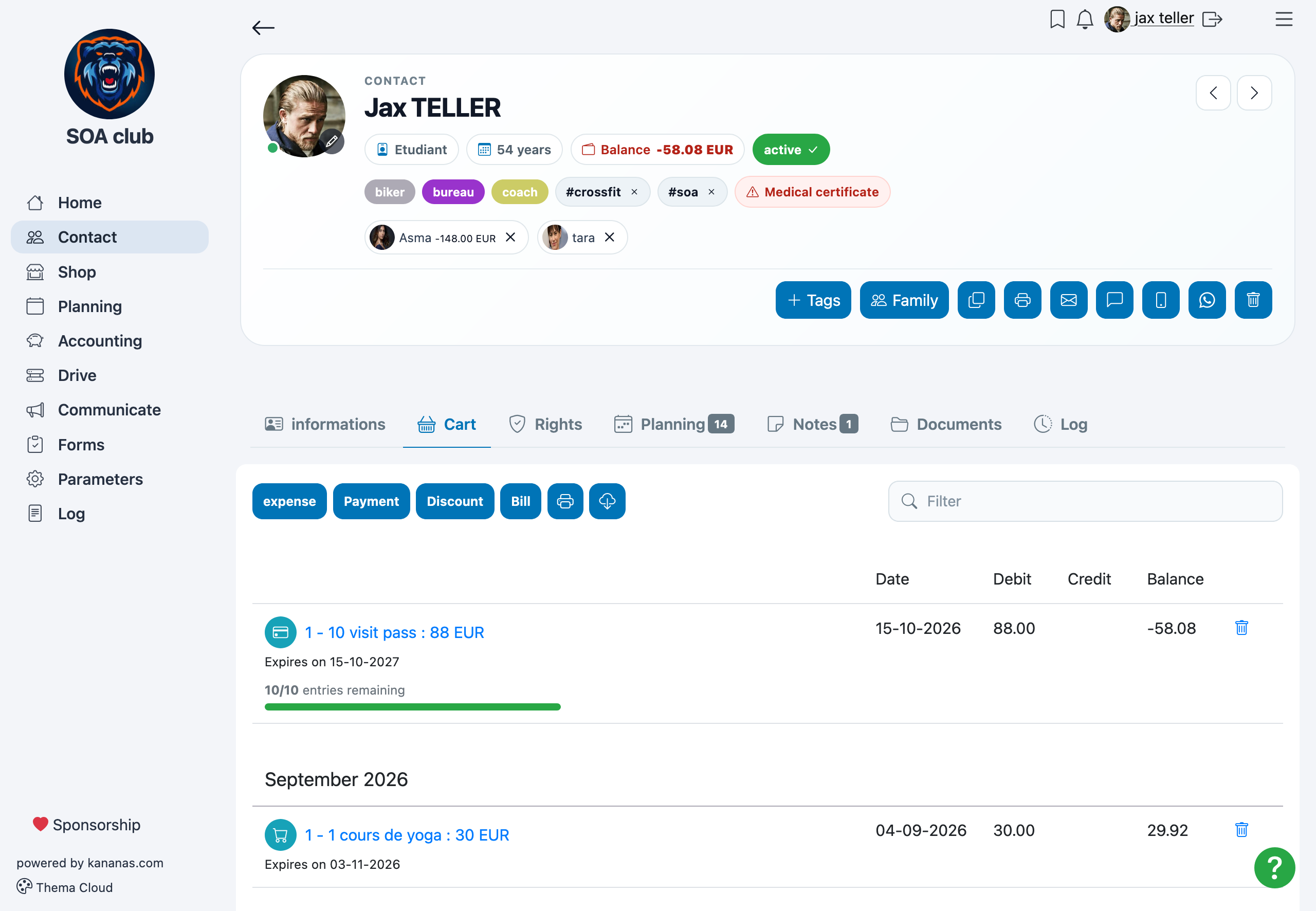
Each class pack purchase creates a pass linked to that member’s contact record.
For each pack, you can track:
- the number of visits originally included;
- the visits already redeemed;
- the remaining entry balance;
- the expiration date, if applicable;
- the usage history.
The purchase appears in the member’s cart. You record or collect payment using the same process as for other Kananas products.
For other sales methods, see Selling a product.
Redeem entries when a member attends a class
When a member attends a class, you can record their attendance and redeem the corresponding entries from their pass.
The deduction is attached to that member’s attendance record for the class.
Record an entry deduction
- Open Schedule and select the class or activity.
- Open the Participants tab.
- Open or edit the member’s attendance record.
- In Pass used, select the member’s class pack.
- In Entries deducted, enter the number of visits to redeem.
- Click Save.
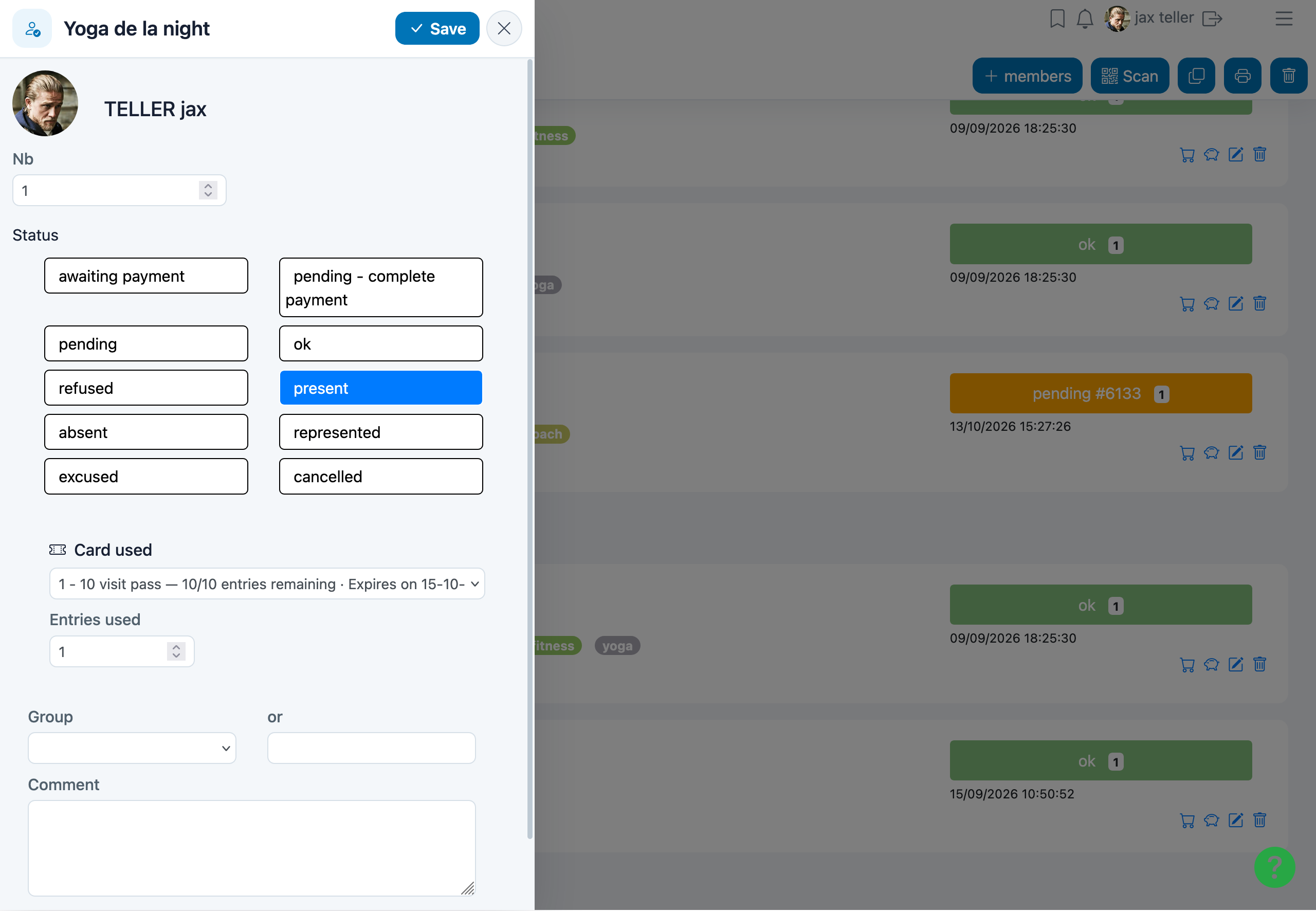
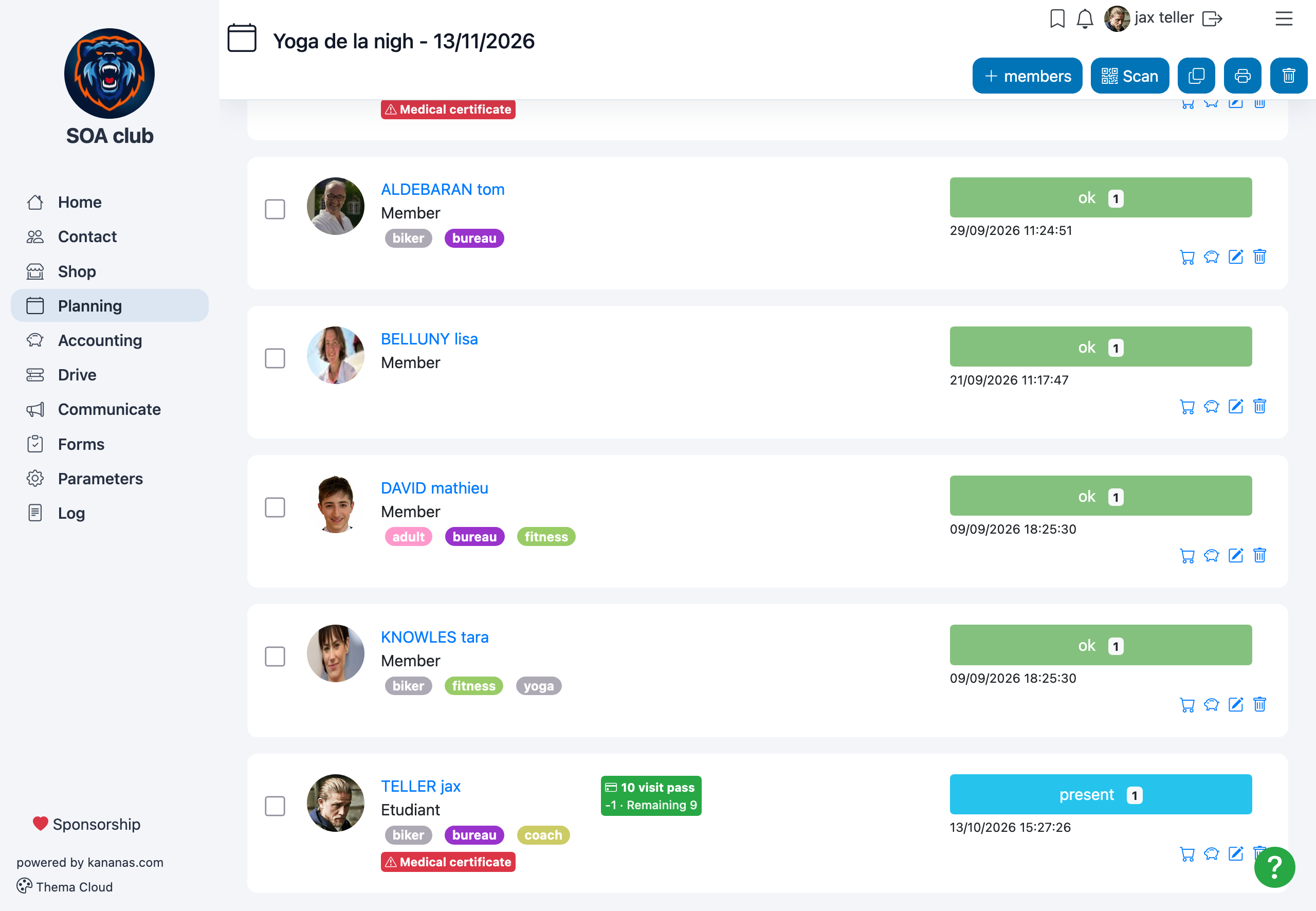
When you save, Kananas updates the balance. The member’s row shows the selected pass and the entries deducted.
Redeem more than one entry at a time
You can deduct more than one entry for a single visit as long as the pass has enough entries remaining.
For example, if a class requires two entries, enter 2 in Entries deducted.
If the pack had 6 entries remaining, the new balance will be 4 entries.
What happens when a class pack runs out or expires?
A class pack can no longer be redeemed if:
- its remaining balance is zero;
- its expiration date has passed.
The member must use another active pass with available entries or purchase a new class pack.
For details about class registration and attendance, see Managing attendees.
How is the remaining balance calculated?
Kananas calculates the remaining balance by subtracting redeemed entries from the number originally included in the pack.
Entries remaining = Entries included − Entries redeemed
Example: a 10-class pack
| Activity | Entries deducted | Remaining balance |
|---|---|---|
| Pack purchased | 0 | 10 |
| First class | 1 | 9 |
| Second class | 2 | 7 |
| Third class | 1 | 6 |
After three classes, the member has redeemed 4 of 10 entries and has 6 entries remaining.
The progress bar shows the remaining balance: in this example, 60% of the pack is still available.
View class packs and remaining visits
Members can check their balances in the member portal, while staff can view the same information in the back office.
From the member portal
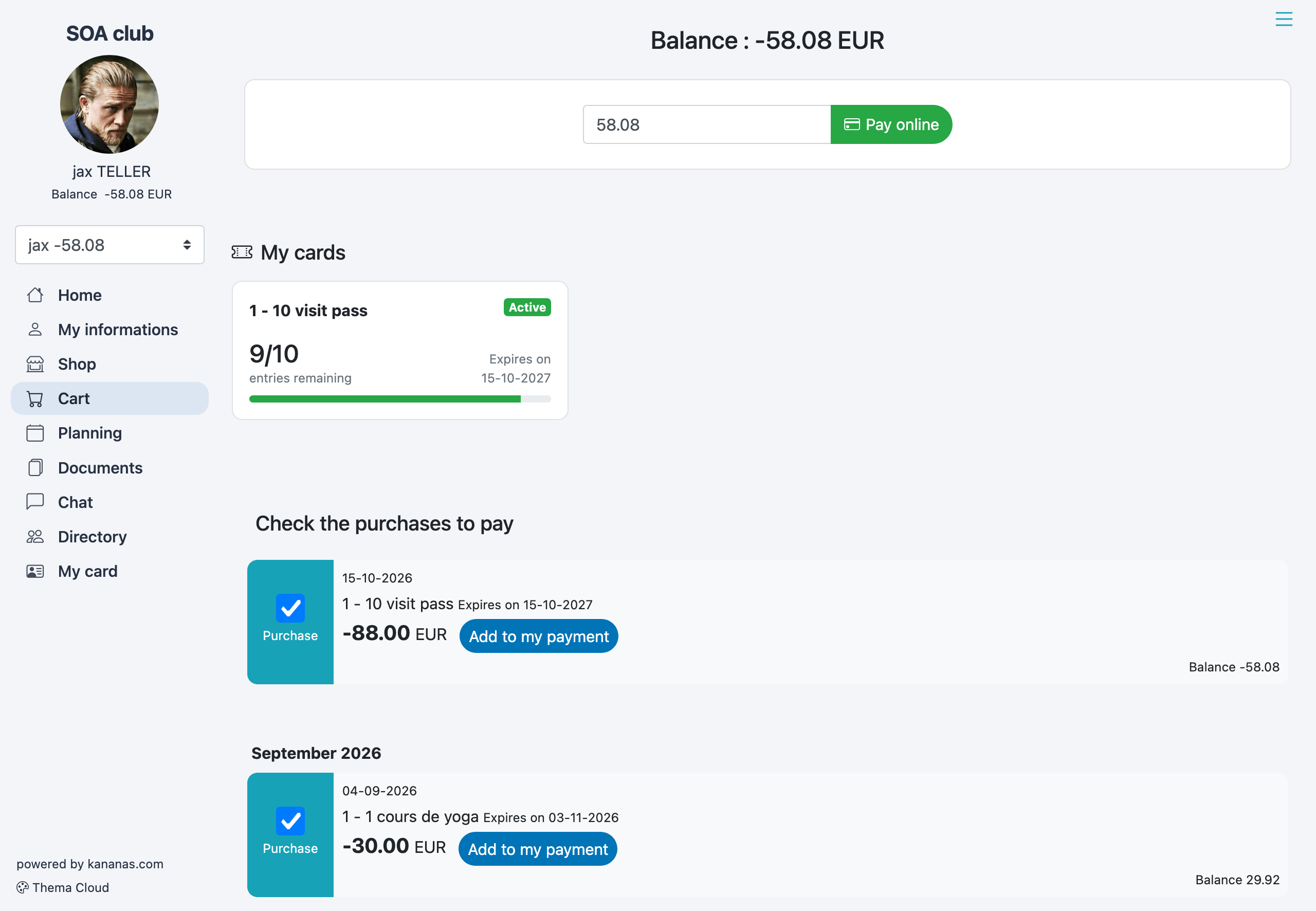
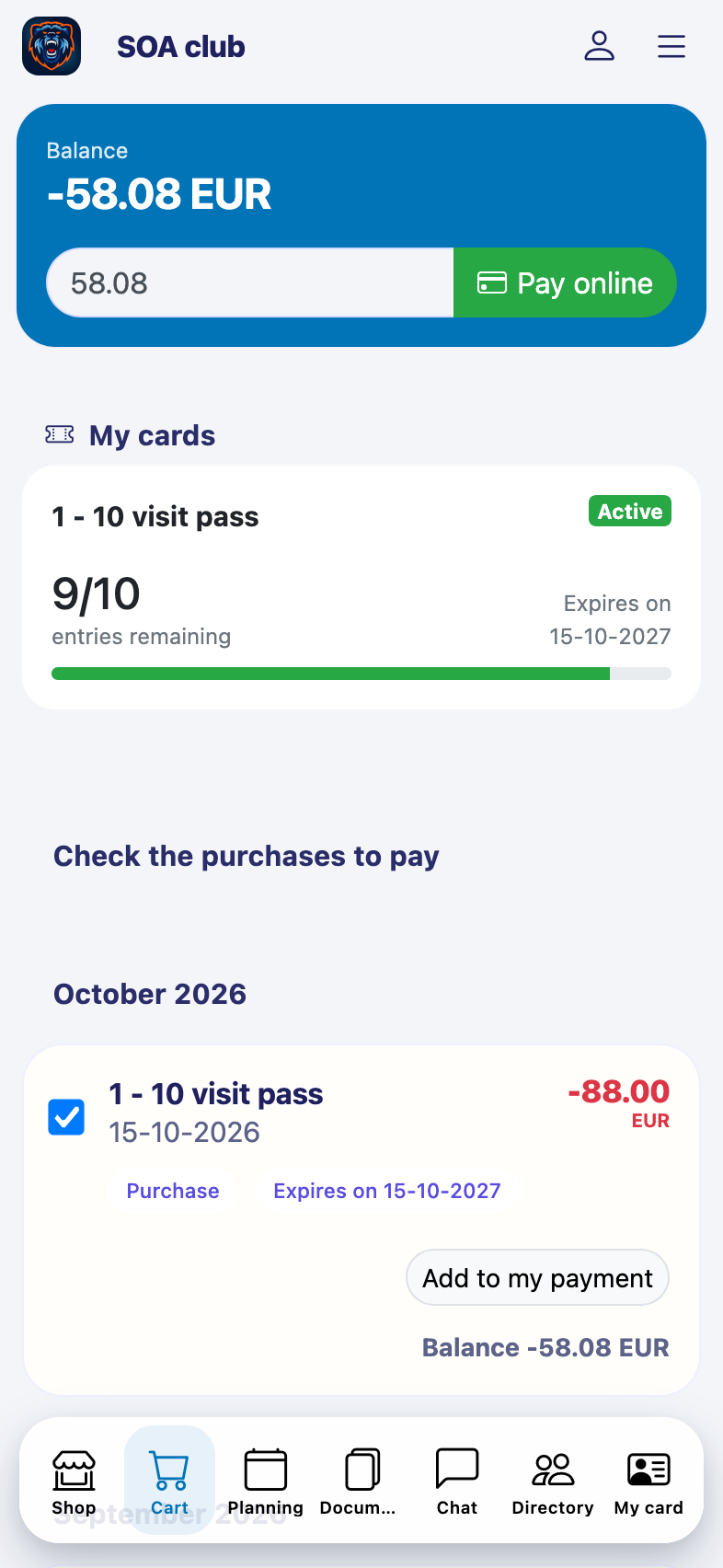
Members can view their class packs in the member portal, under Cart.
For each class pack, they can see:
- the pack name;
- its status: Active, Exhausted, or Expired;
- the remaining entries;
- its expiration date, if applicable;
- a progress bar showing the remaining balance.
Members can access this information on desktop or mobile.
Understanding class pack statuses
| Status | Meaning |
|---|---|
| Active | The pass has entries remaining and has not expired. |
| Exhausted | All entries have been redeemed. |
| Expired | The pass is past its expiration date. |
For staff: track class pack balances
Staff members with the appropriate permissions can check balances in the sales list.
- Open Shop.
- Open the Sales tab.
- If needed, search for a product or member.
- Check the remaining entries beneath the product name.
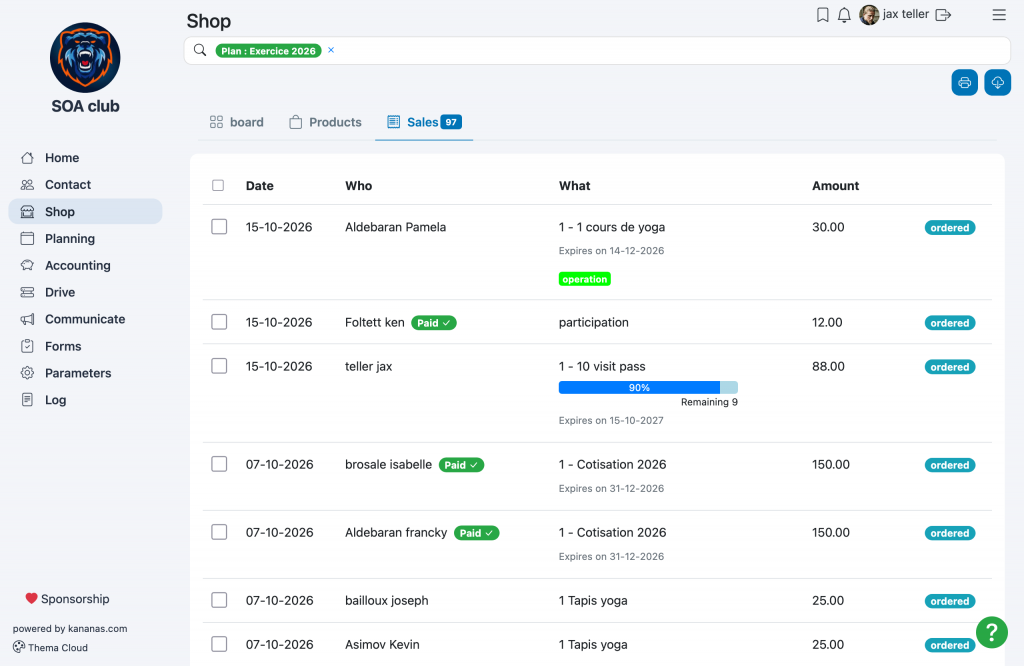
For more information, see Tracking sales.
Review a class pack’s usage history
Kananas maintains a usage history for each class pack.
The history shows when entries were redeemed and which class or activity they were used for.
Find a member’s usage history
- Open the member’s contact record.
- Open the Planning tab.
Each redemption shows:
- the class date;
- the class or activity;
- the number of entries used.
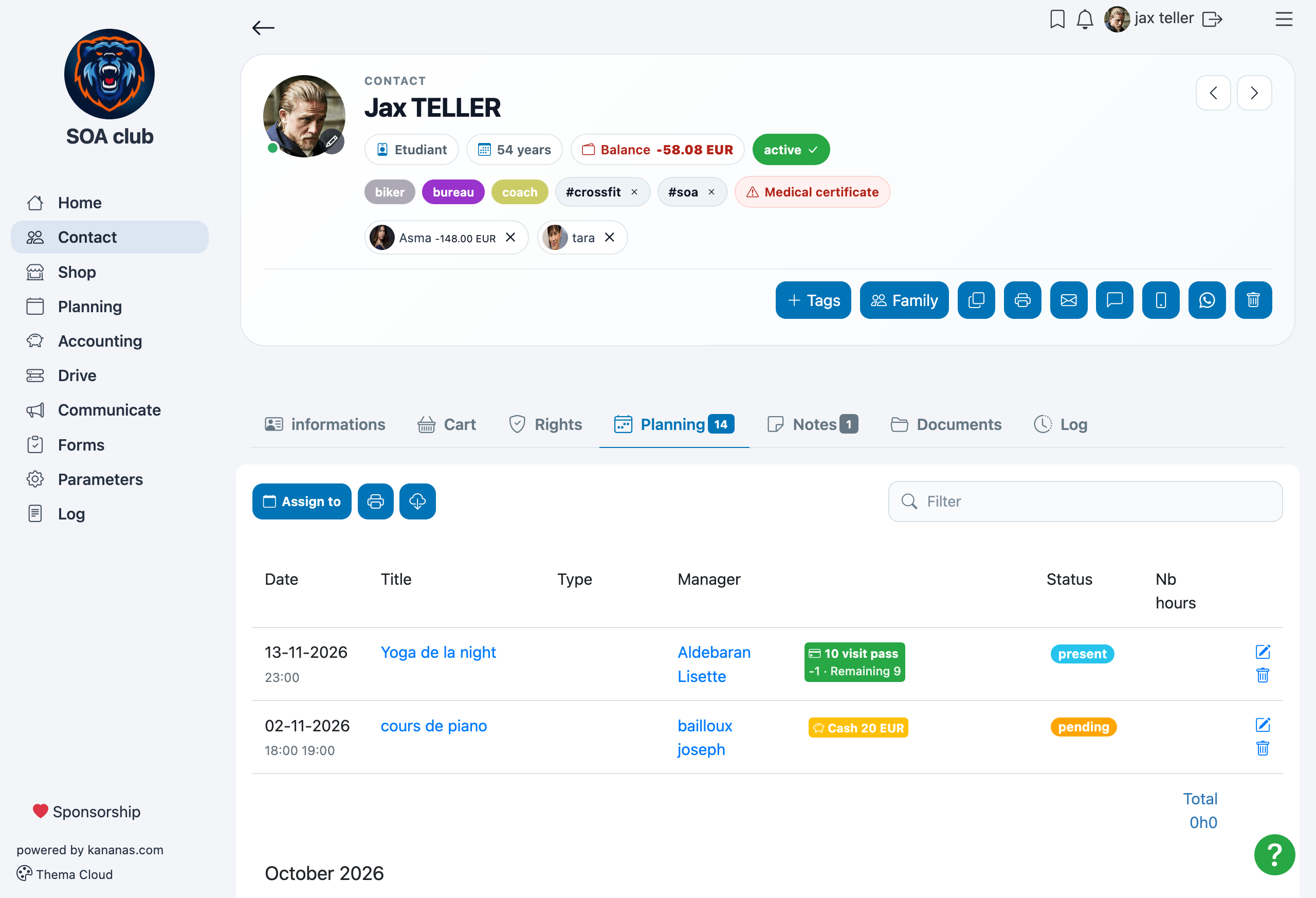
Use this history to verify class attendance, answer member questions, or locate an entry that needs correction.
Correct or reverse an entry deduction
If the wrong number of entries was deducted, you can update the member’s attendance record.
Adjust the number of entries redeemed
- Open the relevant class or activity.
- Open the Participants tab.
- Open the member’s attendance record you need to correct.
- Update the Entries deducted field.
- Click Save.
Kananas recalculates the pass balance using the updated entry count.
Reverse an entire deduction
To return all deducted entries to the pack, either:
- enter 0 in Entries deducted;
- or clear the selected pass from Pass used.
Save the attendance record. Kananas updates the remaining balance.
Delete a purchase or attendance record with redeemed entries
To keep usage records consistent, Kananas prevents you from deleting a purchase or attendance record while entries remain deducted against it.
You must restore those entries before deleting the related record.
To do this:
- Find the attendance records where the class pack was used.
- Edit each recorded redemption.
- Set Entries deducted to 0 or clear Pass used.
- Save the changes.
- After the entries are restored, delete the relevant record.

Best practices
- Use a descriptive name, such as “10-Class Yoga Pack”.
- If applicable, set an expiration date and clearly communicate your terms to buyers.
- Check the remaining balance before redeeming entries.
- Review progress bars to identify packs that are almost used up.
- Reverse any redeemed entries before deleting the corresponding attendance or purchase.
How a class pack works from purchase to final visit
Here is the typical workflow for selling and managing a prepaid class pack in Kananas.
- Create a product with a set number of included entries.
- The member buys the pack online, or staff adds it to their contact record.
- Kananas creates an individual pass linked to the member.
- When the member attends a class, select the pass and enter the number of entries to deduct.
- Kananas automatically updates the remaining balance.
- The member can see their pass and available entries in the member portal.
- Staff can review the usage history from the member’s cart.
- The pass is marked Exhausted when all entries are used or Expired after its validity period.
To learn more about planning